Billing & the payment gate
Billing in ZenhCare is automatic and in-context. You rarely create an invoice by hand — a billable action creates one for you, and you manage it from a small invoice chip that sits right on the record, without ever opening a separate billing screen.
Invoices are auto-generated
Whenever you do something billable, ZenhCare raises an invoice attached to that record:
| You do this | Invoice raised for |
|---|---|
| Check a walk-in into OPD | The consultation fee |
| Create a lab order | The lab tests |
| Dispense medicine | The pharmacy sale |
| Admit / discharge an inpatient | The IPD stay (running bill) |
| Schedule an operation | The OT procedure |
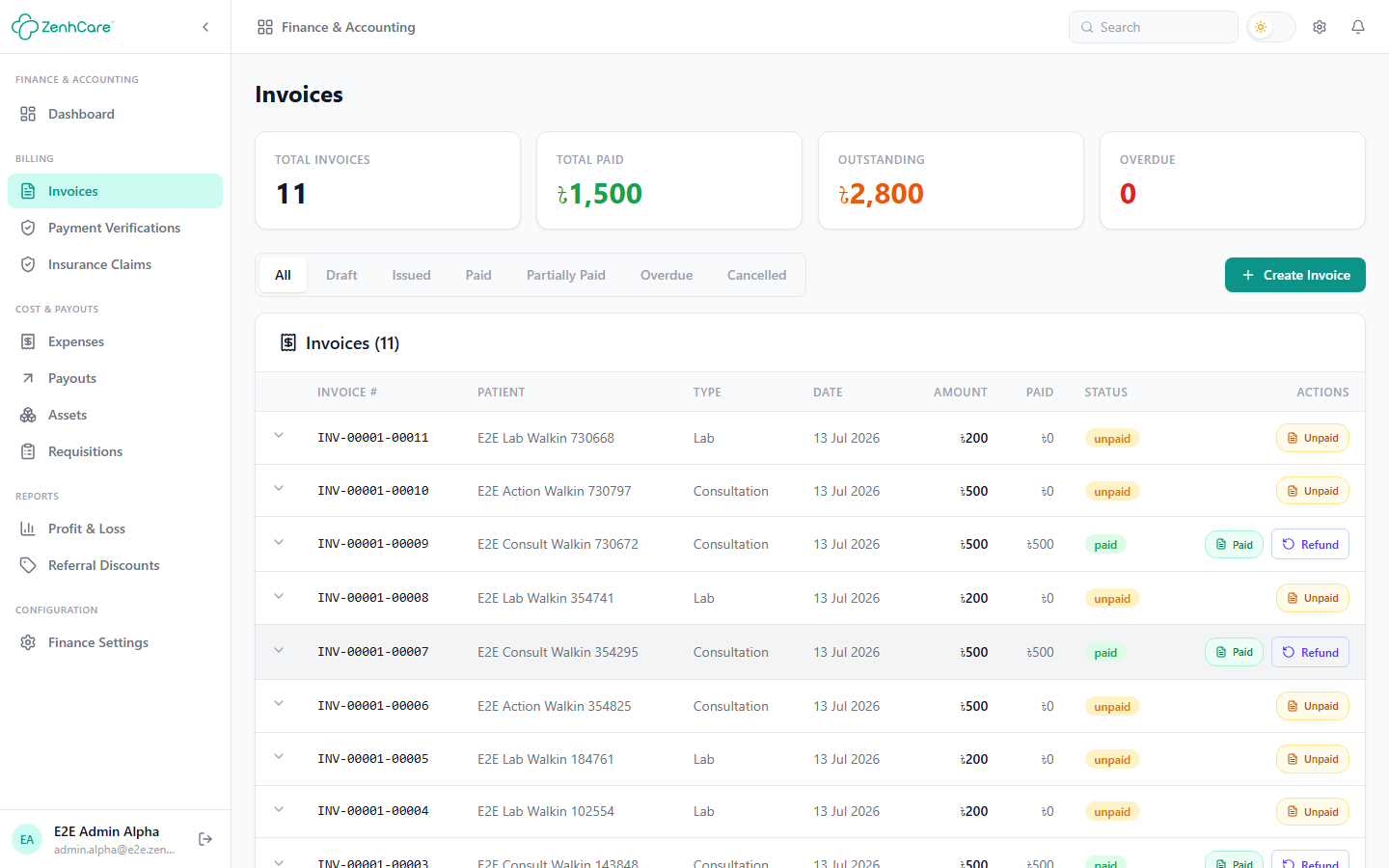
Every invoice also lives under Finance → Invoices with search and filters, and each row carries the same chip you see on the clinical record.
Invoicing works even without the Finance module
Collecting money is essential, so the inline invoice chip is always available. The full Finance module (expenses, payouts, P&L, claims) is part of the Enterprise plan — see Finance.
The invoice workspace
Clicking any invoice chip opens the invoice workspace — one panel to view, collect, discount, verify, print, or cancel that invoice, without leaving the page you're on. It's the same panel everywhere the chip appears: OPD, IPD, the lab and pharmacy queues, OT, appointments, the patient record, and the Finance list.
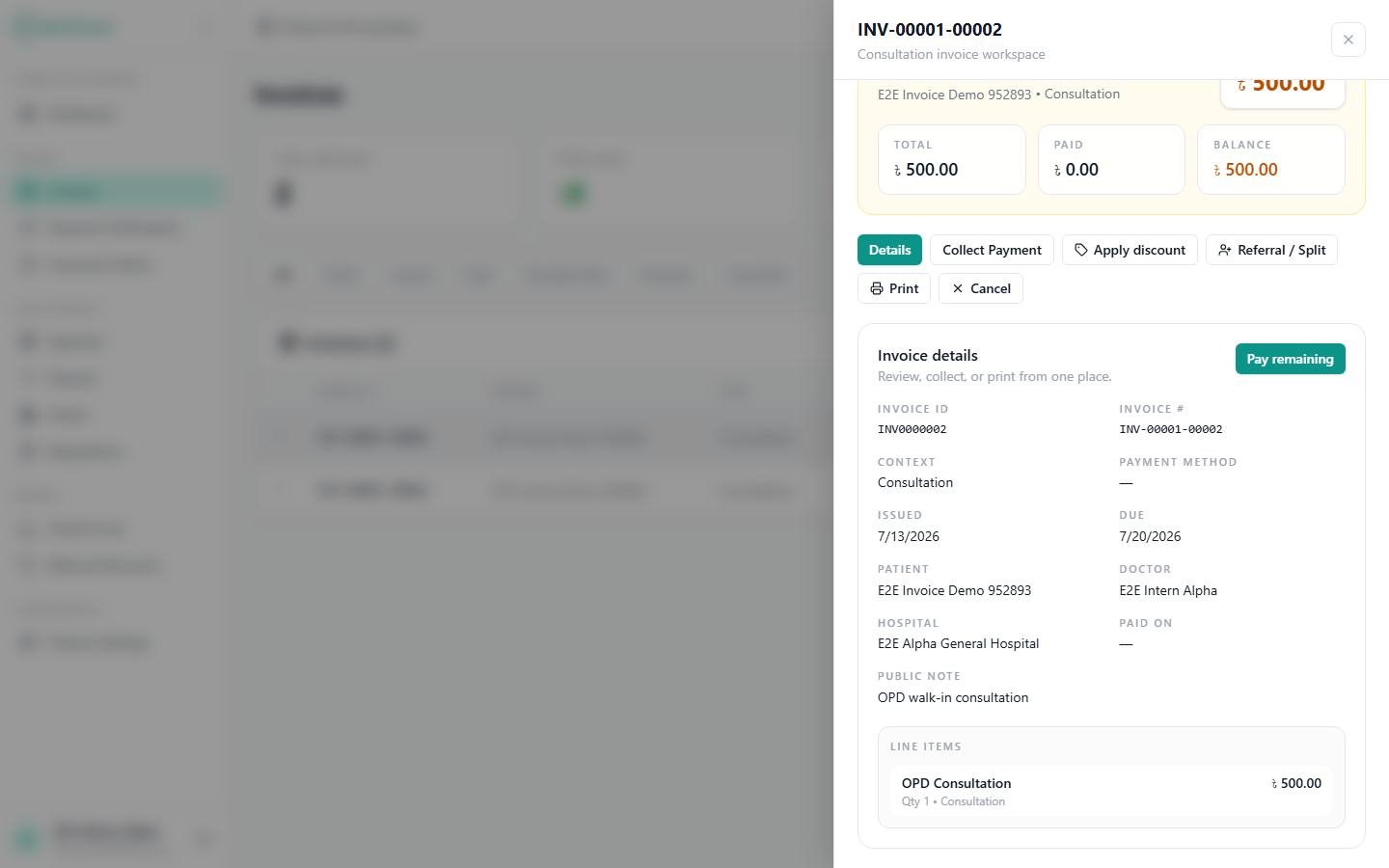
At a glance you get the status, the outstanding balance, and a Total / Paid / Balance summary. Below that is an action row whose buttons change with the invoice's state and your permissions:
| Action | When it appears |
|---|---|
| Details | Always — the read-only overview and line items |
| Collect Payment | The invoice still owes money and you can take payments |
| Apply / Edit discount | Nothing has been collected yet, and you manage billing |
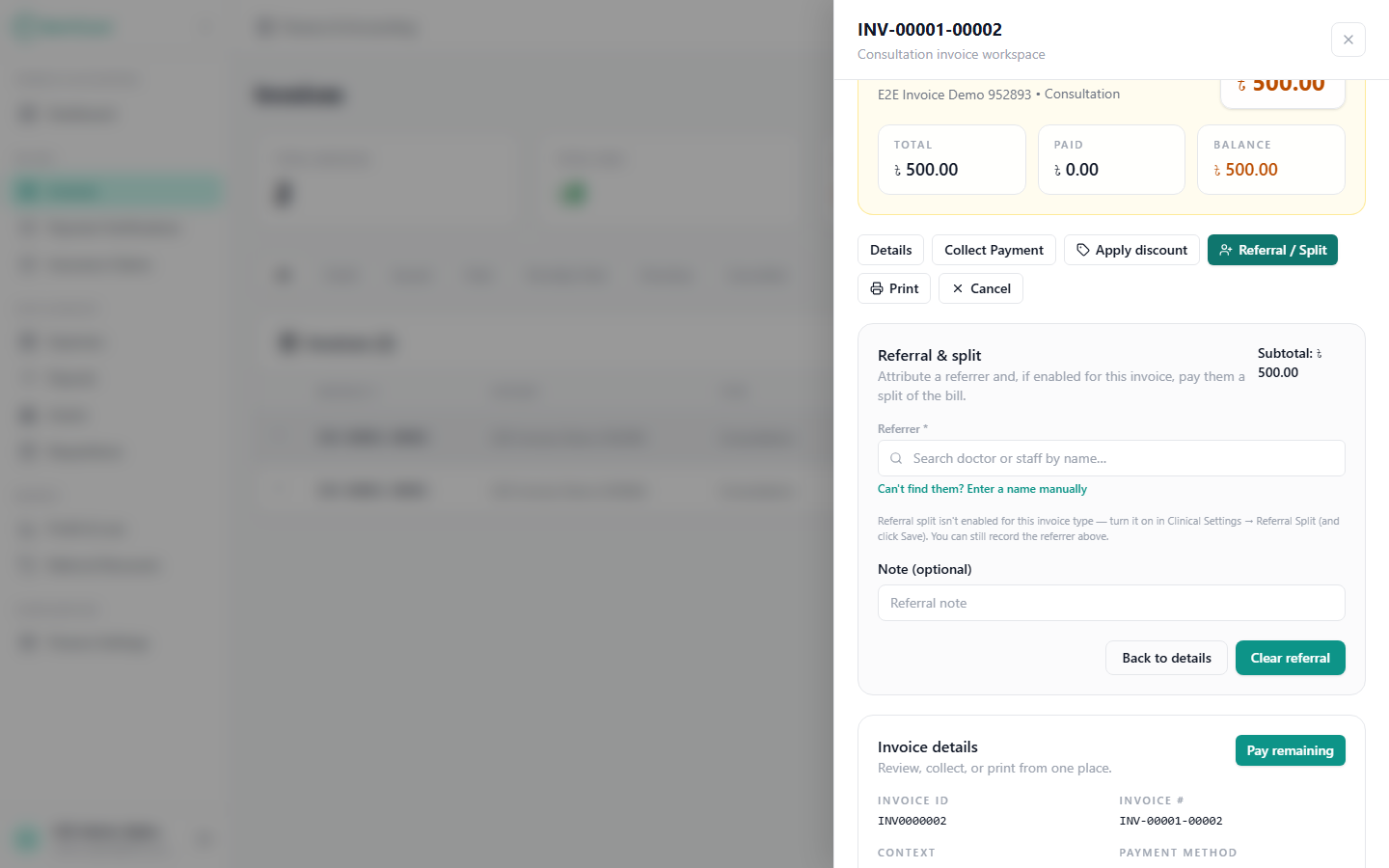
| Referral / Split | Attribute a referrer — and, for lab / OT / pharmacy, a payout split |
| Always — the branded PDF | |
| Request refund | The invoice was paid online and isn't already refunded |
| Verify payment | A staff-recorded payment is waiting and you hold the verify permission |
| Cancel | The invoice isn't already cancelled or refunded (administrators only) |
The chip colour tells you the state without opening anything: amber Unpaid, blue Partial, green Paid, rose Overdue, slate Cancelled, purple Refunded. Two extra pills call out attention-worthy states — a Refund requested (awaiting review) and Pending verification (a recorded payment not yet counted).
The payment gate
Many hospitals want the consultation fee collected before the patient goes in. When the payment gate is on, an unpaid OPD visit can't be triaged or sent to the doctor until the fee is cleared. You'll see:
Payment must be cleared before the patient can be triaged.
That's the gate doing its job — not an error.
To clear it: on the patient's OPD card, click the invoice chip (it reads Unpaid) → Collect Payment → pick the method → Record payment. The chip flips to Paid, and triage/consultation are allowed. Paying the consultation invoice clears the visit automatically.
Bypass and configuration
Some hospitals let staff override the gate (for emergencies or account patients) by entering a reason, which is recorded for the audit trail. The gate — and whether bypass is allowed — is a hospital-wide setting under Clinical Settings. No consultation fee configured → nothing to collect, and the gate doesn't fire.
Recording a payment
From the workspace → Collect Payment:
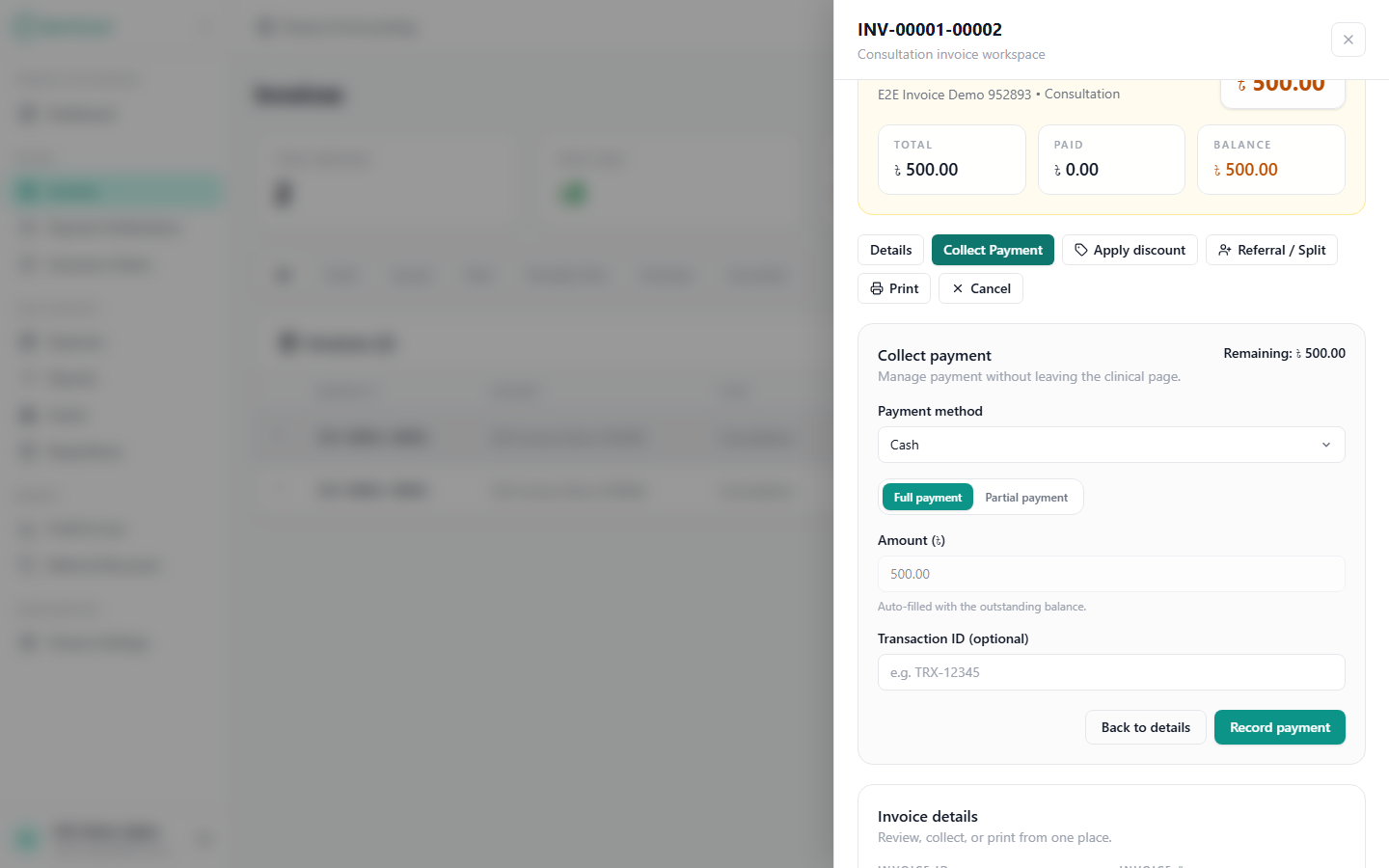
- Choose a method — cash by default, plus manual methods (bKash, Nagad, Rocket, bank transfer) and any online gateways your hospital enabled.
- Full or partial — take the whole balance, or record part and leave the rest outstanding (a partial can carry an internal note).
- Record payment. The chip updates and the balance drops. An optional transaction ID can be stored against the payment for reconciliation.
For an online gateway, the payer is taken to the gateway in a new tab; the workspace waits and marks the invoice Paid automatically once the payment completes.
Payment verification
Anyone with the collect payment permission can record one, including receptionists. But there's a safeguard:
- If the recorder is not a verifier, the payment is held as Pending verification and isn't counted until a hospital administrator approves it. The approver opens the workspace → Verify payment, sees who recorded it, the method, amount and any transaction ID, then Verify & record or Reject (with a note).
- Administrators/accountants who hold the verify permission finalise immediately.
This lets front-desk staff take cash while keeping the books under a supervisor's eye.
Discounts & referral attribution
Before any money is collected, an administrator can discount the invoice — and every discount is attributed to a referrer (a doctor or staff member) so the books stay honest.
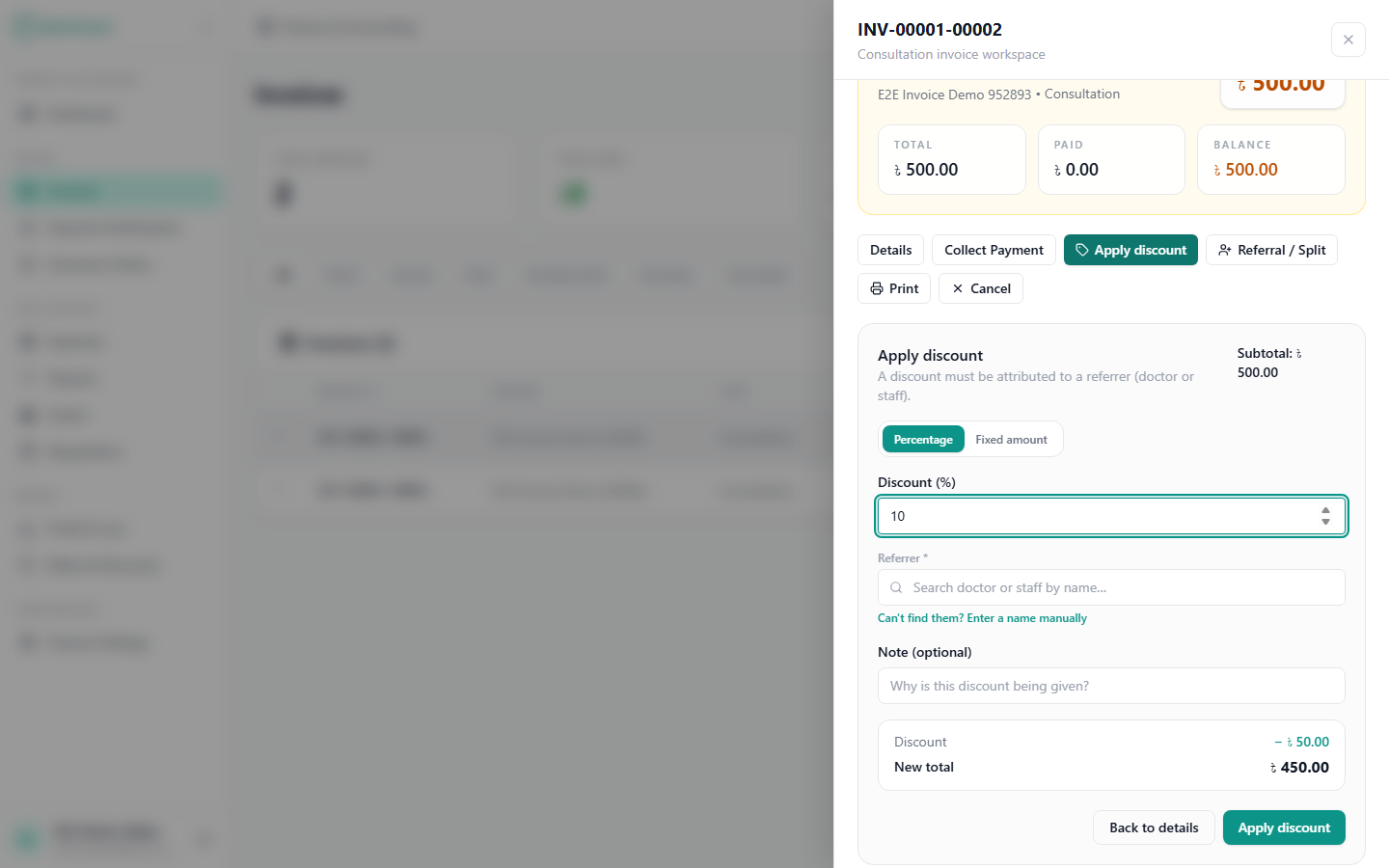
Pick percentage or fixed amount, choose the referrer, and the workspace shows the new total immediately — so you commit to the number you actually see.
The Referral / Split action attributes a referrer even without a discount, and — for lab, OT and pharmacy invoices where your hospital enabled it — can also pay that referrer a split of the bill.
Split vs discount
A discount reduces what the patient pays. A split is what you pay the referrer — it accrues as a payable when the invoice is collected and is settled later under Finance → Referral payouts. The split is only offered on lab, OT and pharmacy invoices, and only when it's switched on in Clinical Settings → Referral Split.
Cancelling & refunds
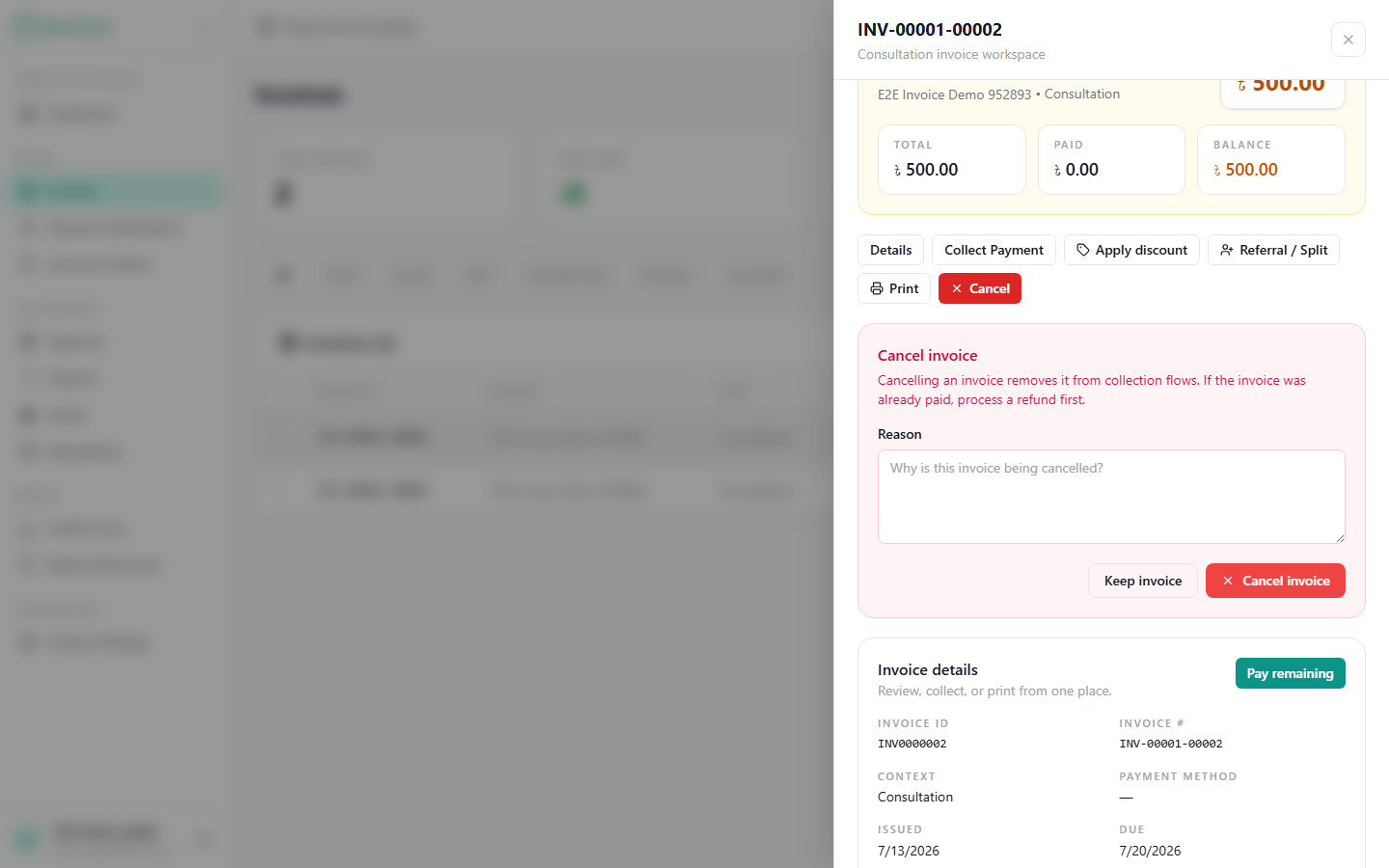
- Cancel an unpaid invoice (with a reason) to take it out of collection. If it was already paid, process a refund first.
- Refund applies to invoices paid online — a refund request goes to ZenhCare's super administrators to process, and the workspace shows a Refund requested pill until they act. Cash is adjusted differently. See Finance → Refunds.
Printing an invoice
Print opens the branded invoice PDF — rendered on the server from your hospital's own invoice template (set up in Finance settings), so what you hand the patient carries your logo, header and footer. If a pop-up blocker stops the tab, the PDF downloads instead.