Lab — orders, samples & results
The Lab module (on the Growth and Enterprise plans) runs the laboratory from order to report. Clinical → Lab has three tabs: Orders, Tests (the catalogue), and Inventory.
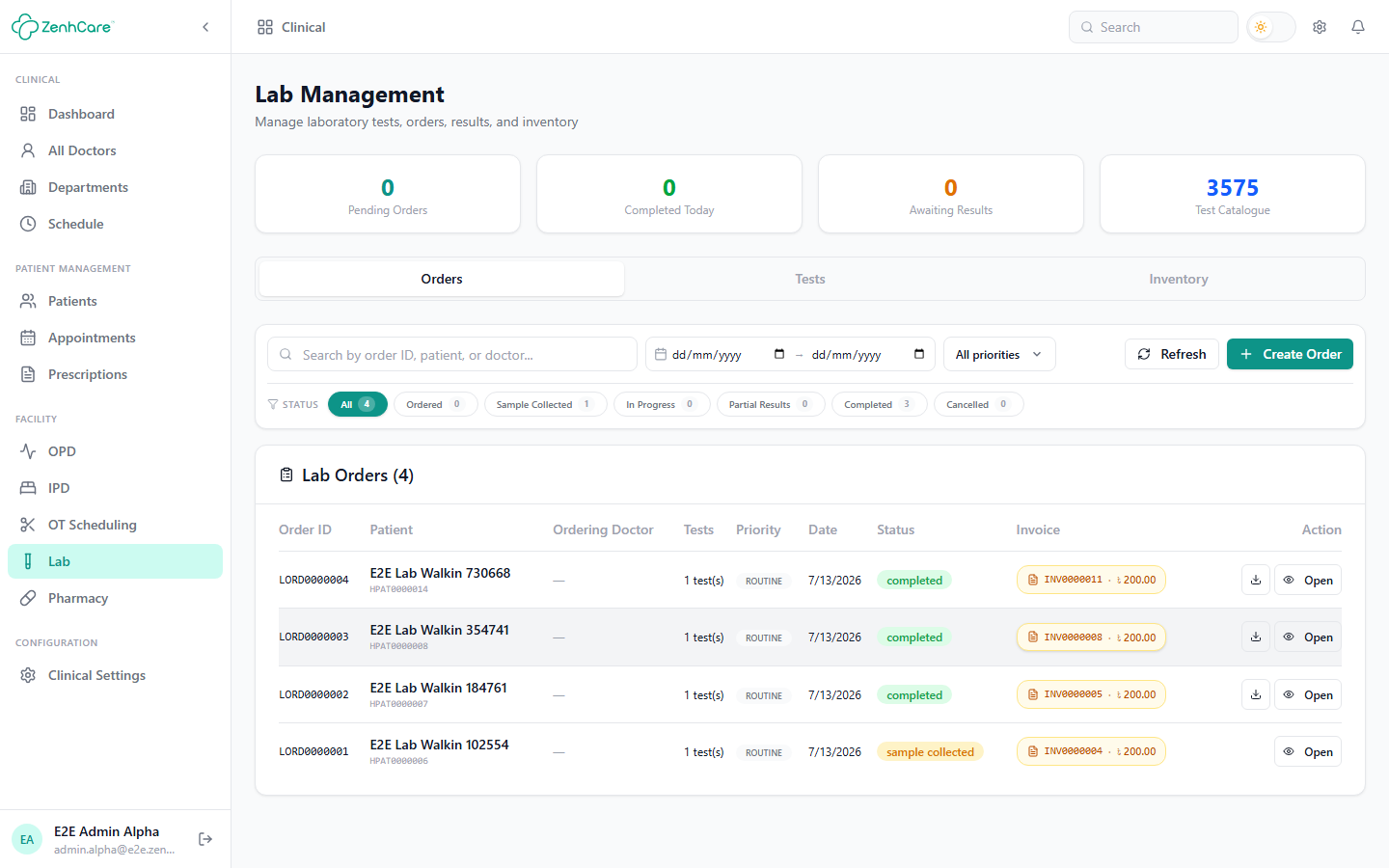
The test catalogue
Lab tests come from a large shared catalogue that's ready to order out of the box. Under Tests you can also Start from Template (a common panel like CBC or LFT with components and reference ranges pre-filled) or add a Custom Test (name, code, sample type, price, turnaround, components). Each test's price flows onto the order's invoice.
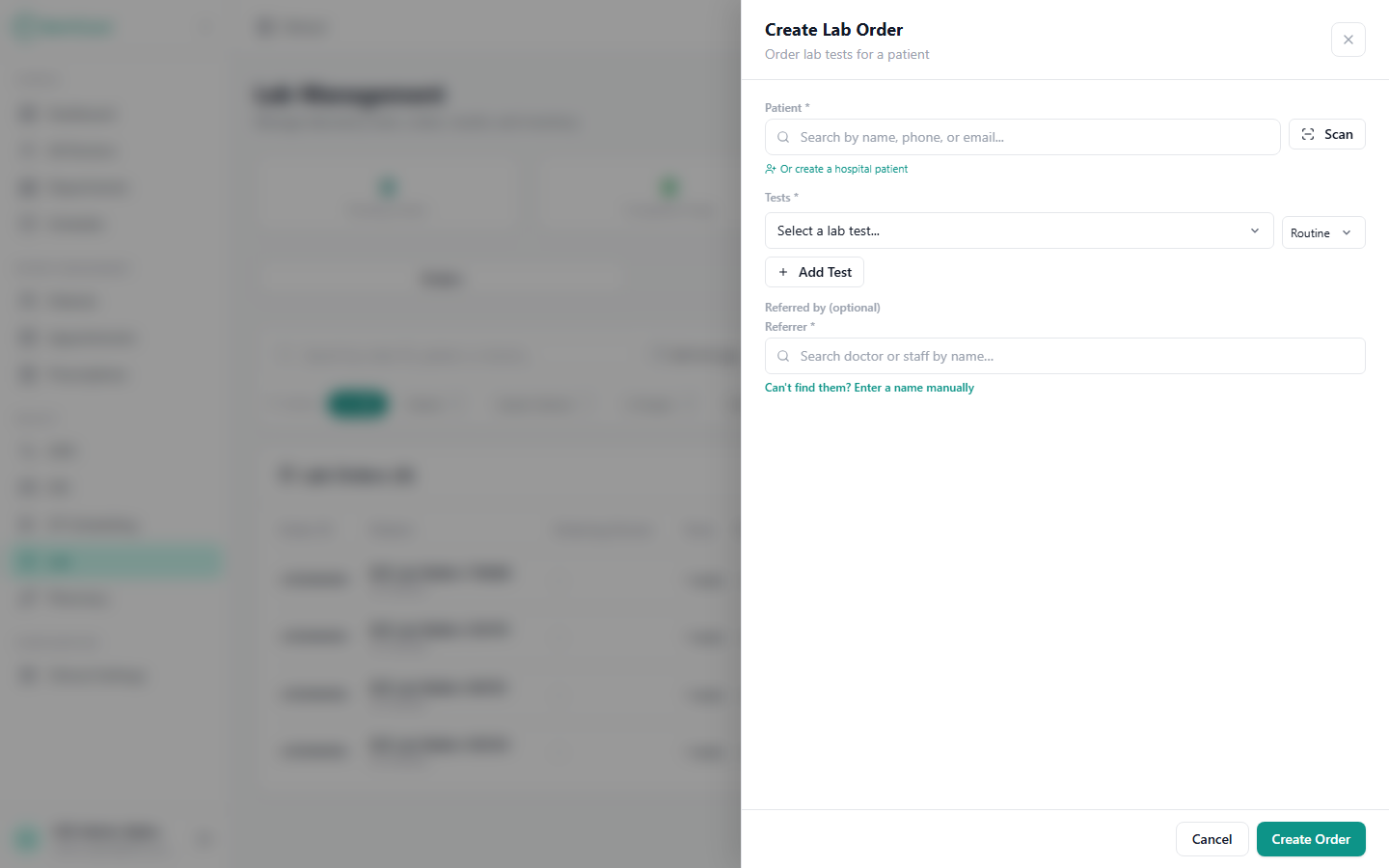
Creating an order
From Orders → Create Order: pick the patient, add one or more tests (each with a priority — Routine / Urgent / STAT), optionally attribute a referrer, and Create Order. A lab invoice is raised for the tests.
The lab workflow
Open an order to work it through:
- Mark sample collected — the front-desk → lab handoff. The order is now with the technician.
- Enter Result for each test — type the value(s); multi-analyte panels show a row per component, and the app flags abnormal / critical results against the test's reference ranges.
- When every test has a result, the order auto-completes and a consolidated report becomes available (View Report, rendered as a PDF).
Reports & outsourced tests
Finished reports can be viewed or downloaded from the order, and results appear on the patient's record and trends. A test can also be marked as sent to an external lab — ZenhCare tracks the cost owed to that lab as a payable to settle in Finance, and (unless your hospital chooses otherwise) the patient never sees the external lab's name.
The Inventory tab tracks lab supplies with stock levels and low-stock warnings.
Related
- Billing — the lab invoice.
- Clinical setup → Lab tests — managing the catalogue.