Clinical setup & more
OPD, IPD, lab, pharmacy, and OT all depend on data you configure once. This page covers the roster, the appointment flow, and every Clinical Settings tab. Set these up and the rest of the app comes to life.
Settings power flows
Almost every "the picker is empty" moment traces back to a settings tab. Wards & beds power admissions; lab tests power orders; medicines power dispensing; OT rooms power scheduling; fees power the invoices. Configure first, then work.
Doctors, departments & schedule
- Doctors (Clinical → All Doctors) — your medical staff. The Add Doctor wizard captures name, contact, license, and an employment (how they're paid, and which department). A doctor can even be added without a login — useful for duty/visiting doctors you only need for attribution and payouts.
- Departments — the specialties you run. They drive the department → doctor pickers all over the app (OPD, IPD, appointments), so set these up early.
- Schedule — a doctor's availability (the weekday slots they consult in), which is what patients and your front desk can book into. The same screen hosts the duty roster for hospitals using duty doctors.
The usual order is Departments → Doctors → Schedule, then start seeing patients.
Appointments
Clinical → Appointments is for scheduled visits — booked ahead for a doctor and time. (For a walk-in today, use OPD check-in instead.) Booking picks the patient, a department → doctor, a slot from the doctor's availability, and a visit type (first visit / follow-up). A booking flows Scheduled → Checked-in → Triaged → With doctor → Completed, joining the same OPD board on check-in.
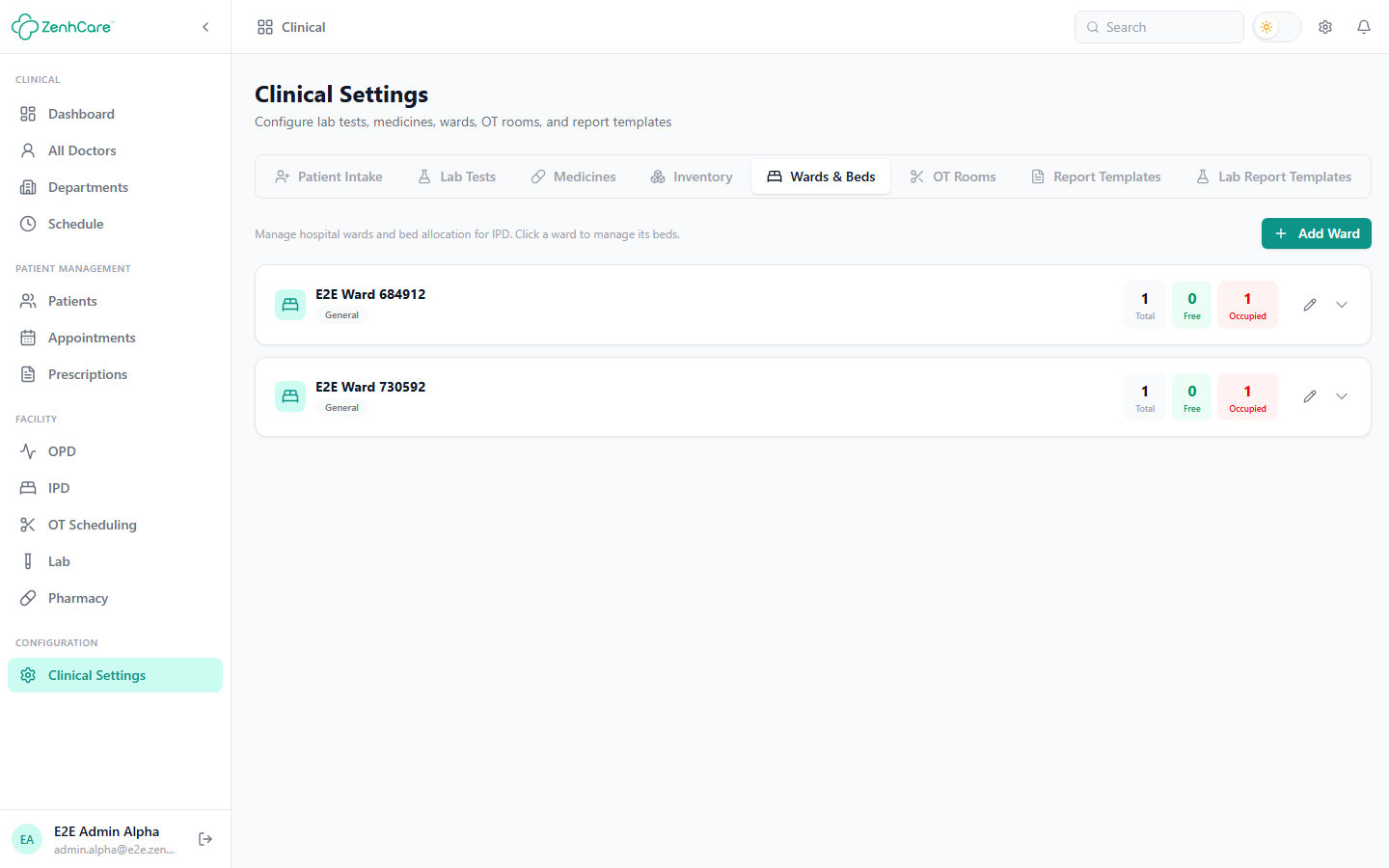
Wards & beds
Create wards (name and type — General, ICU, Maternity…), then add beds with a bed number, type, and daily rate. Beds here are what the IPD admission picker offers, and it only shows unoccupied ones. Wards can carry a service charge and a day-counting policy that shape the inpatient bill.
Lab tests
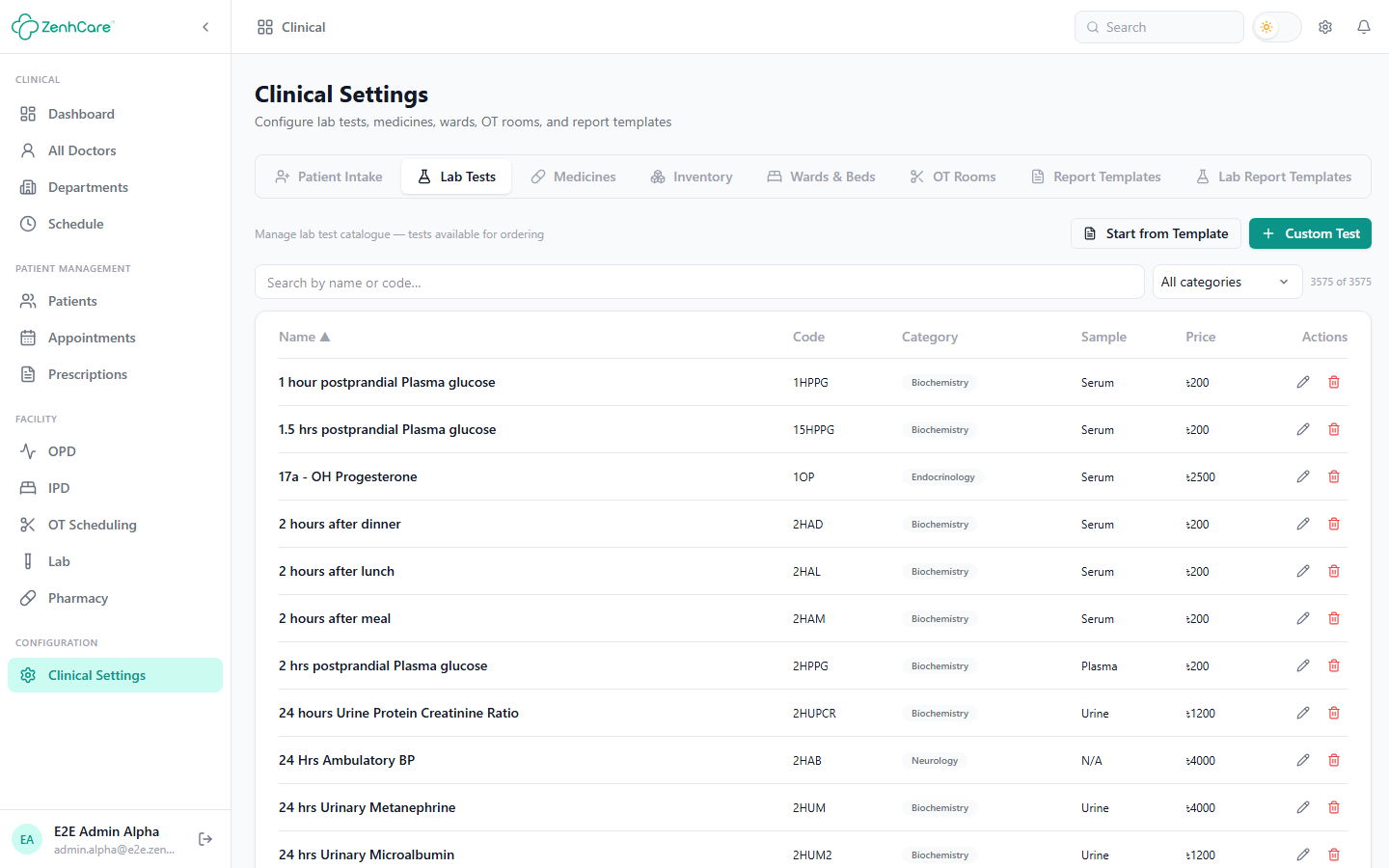
Manage the lab catalogue — browse the shared tests, add from a template, or define a fully custom test (price, sample type, components, reference ranges). Prices here become the lab invoice.
Medicines
The medicine catalogue behind Pharmacy. Add medicines (name, generic, form, strength, category); stock and pricing are managed on the Pharmacy screen and its Purchasing tab.
OT rooms & scheduling
Create the operating theatres that OT scheduling books into, then schedule surgeries with the patient, procedure, room, surgeon, and slot. An OT booking raises an invoice; where a service charge or referral split applies, it settles in Finance → Payouts.
Known issue — OT room equipment
Submitting the Add OT Room form with the comma-separated equipment field filled can fail validation. Workaround: leave equipment blank when creating the room. This is a known bug slated for a fix.
Prescriptions
A prescription is written by a doctor on the consultation canvas (see For doctors) — diagnosis plus medicines with dose, frequency, and duration. Finalising it completes the consultation. The pharmacist can then pick that prescription when dispensing to pre-fill the medicines. The hospital-wide list lives at Clinical → Prescriptions.
Fees & the payment gate
Configure the consultation fees (first visit, follow-up) that appear on OPD and appointment invoices, and the payment gate — whether the fee must be collected before triage/consultation, and whether staff may bypass it with a reason. See Billing & the payment gate.
Inventory & other configuration
A shared, hospital-wide inventory of consumables bridges into Pharmacy stock either way. Depending on your plan you may also see referral split, external lab display rules, and document templates for prescriptions, invoices, and reports.