Logging in & the interface
Your account
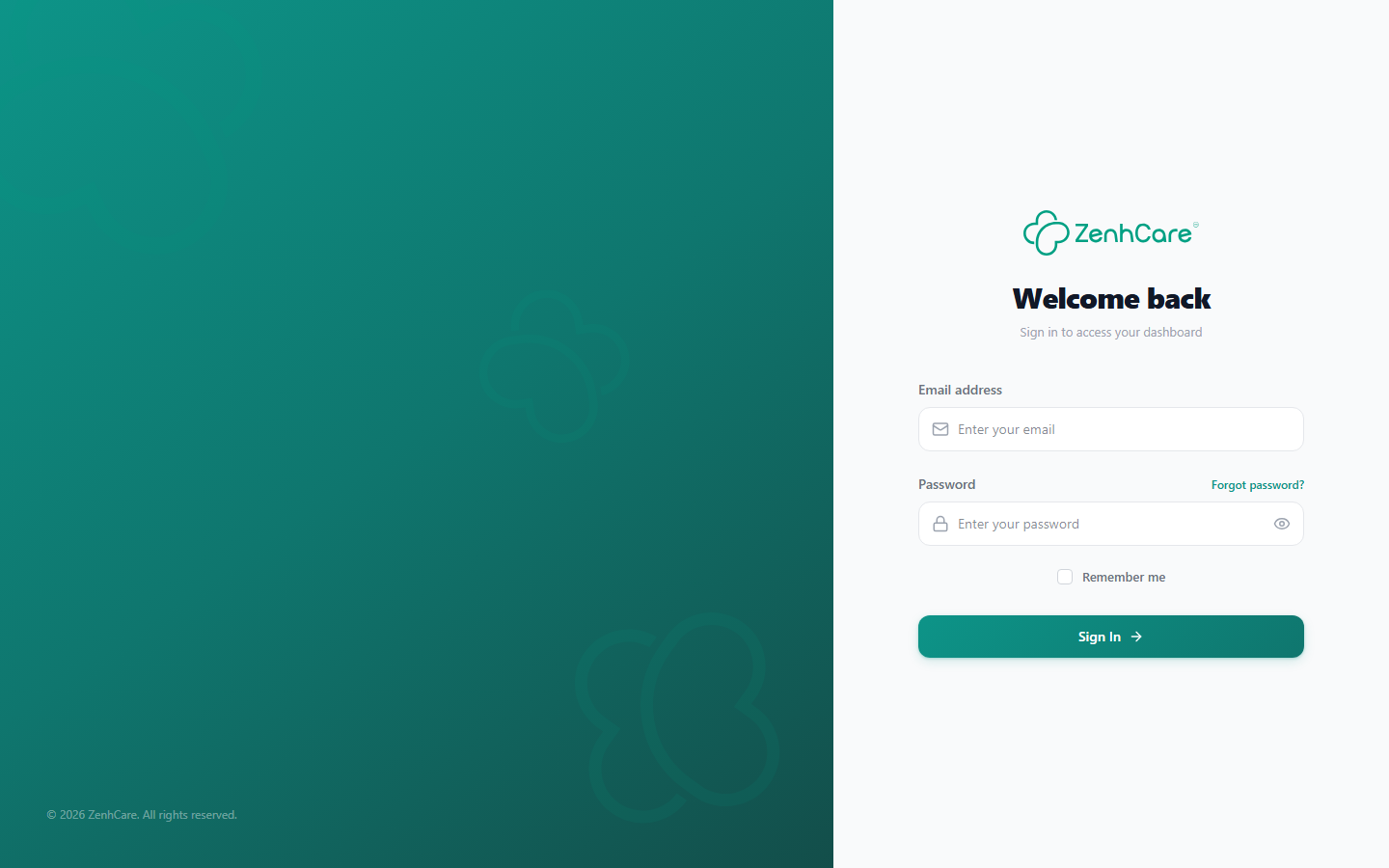
Your hospital administrator (or ZenhCare, when the hospital was first set up) creates your account and gives you a temporary password. The first time you sign in you'll be asked to set your own password — this is required, you can't skip it.
- Go to your hospital's ZenhCare web address and choose Sign in.
- Enter your email and the temporary password you were given.
- When prompted, set a new password and confirm it. You're in.
How a doctor gets their first password
When an administrator adds a doctor, ZenhCare shows the temporary password on screen once (and also emails and texts it to the doctor) — so the admin can hand it over directly if the message doesn't arrive. The doctor signs in with it and is prompted to set their own password. If it's ever lost, the admin can issue a password reset to generate a new one.
Staying signed in
ZenhCare keeps you signed in securely in the background. Two things to know:
- Don't hard-refresh a deep page repeatedly. The app is a single-page application; pressing F5 on a deep screen re-boots it. Navigate with the sidebar and buttons instead of reloading — it's faster and keeps your session steady.
- One role per login. Your menu and permissions are fixed by your role. If you can't see something you need, ask your administrator — it's a permission or a module your plan doesn't include, not a fault (see Roles).
If sign-in gives you trouble
| Symptom | What it usually means |
|---|---|
| "Invalid credentials" | Wrong email/password, or using the temporary password after already changing it. |
| Bounced back to login after clicking a menu item | A permission you don't hold, or an expired session — sign in again; ask your admin if it repeats on one screen. |
| Locked out briefly | Login is rate-limited to stop guessing. Wait a few minutes. |
What you see after signing in
Where you land depends on your role.
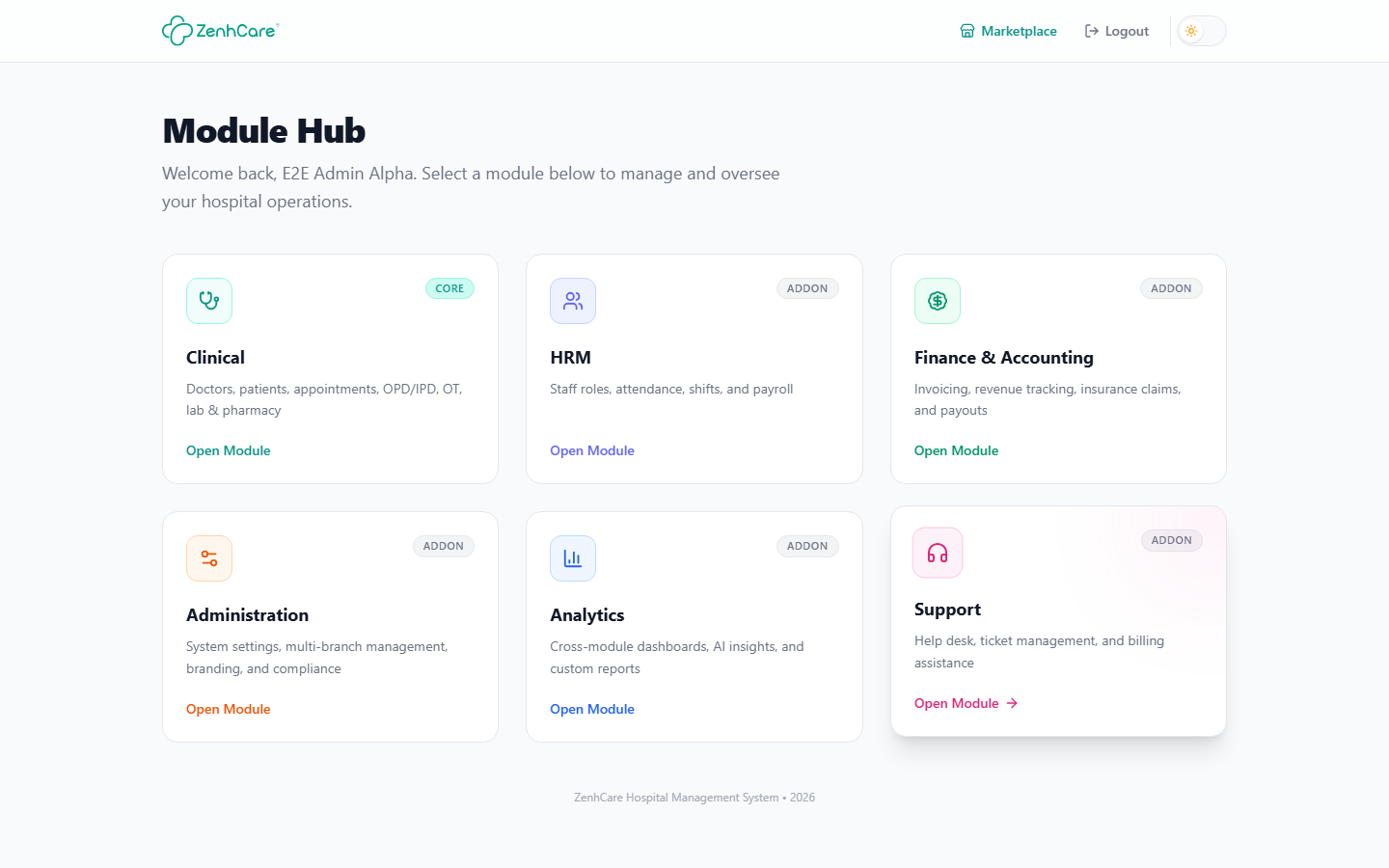
As a hospital administrator, you arrive at the Module Hub — a grid of module cards, not a single dashboard: Clinical, HRM, Finance & Accounting, Administration, Analytics, and Support. Which cards are open depends on your hospital's plan: Clinical and Support come with every plan, and the rest unlock as you move up (Growth adds Administration; Enterprise adds Finance, HRM, and Analytics). A card your plan doesn't include shows a Locked badge with Upgrade to access; click Open Module on an unlocked card to go in.
Every other role skips the hub and lands straight in its own workspace: a doctor opens their dashboard of today's patients; a receptionist or nurse lands in the clinical workspace; an accountant in Finance; a pharmacist in Pharmacy, and so on — each with a sidebar filtered to exactly what they can touch.
The sidebar is organised by module
Inside a module, everything lives behind a left-hand sidebar grouped into the areas you work in — for an administrator's Clinical module: doctors, patients, OPD, IPD, OT, lab, pharmacy, and settings, with Finance, Workforce (HRM), Administration, and Analytics reachable from the hub. Staff see a single unified sidebar filtered to exactly what their role can touch.
Missing a menu item?
Two reasons: your role lacks the permission, or the module it belongs to isn't in your hospital's plan (Lab, Pharmacy, OT, IPD need Growth; Finance, HRM, Analytics need Enterprise). See Plans & modules.
Patient name badges
Wherever a patient's name appears, a small badge tells you whether they're a
platform patient (has an app login) or a hospital walk-in (HPAT_…, no
login). See Patients.
Light & dark mode, and search
Use the toggle in the top bar to switch themes — your choice is remembered on that device. Most list screens (patients, invoices, lab orders) have their own search and filter bar at the top for finding a specific record.