For doctors
Doctors get their own area of ZenhCare, focused on seeing patients rather than running the hospital. It opens on your dashboard — today's appointments and the patients waiting for you.
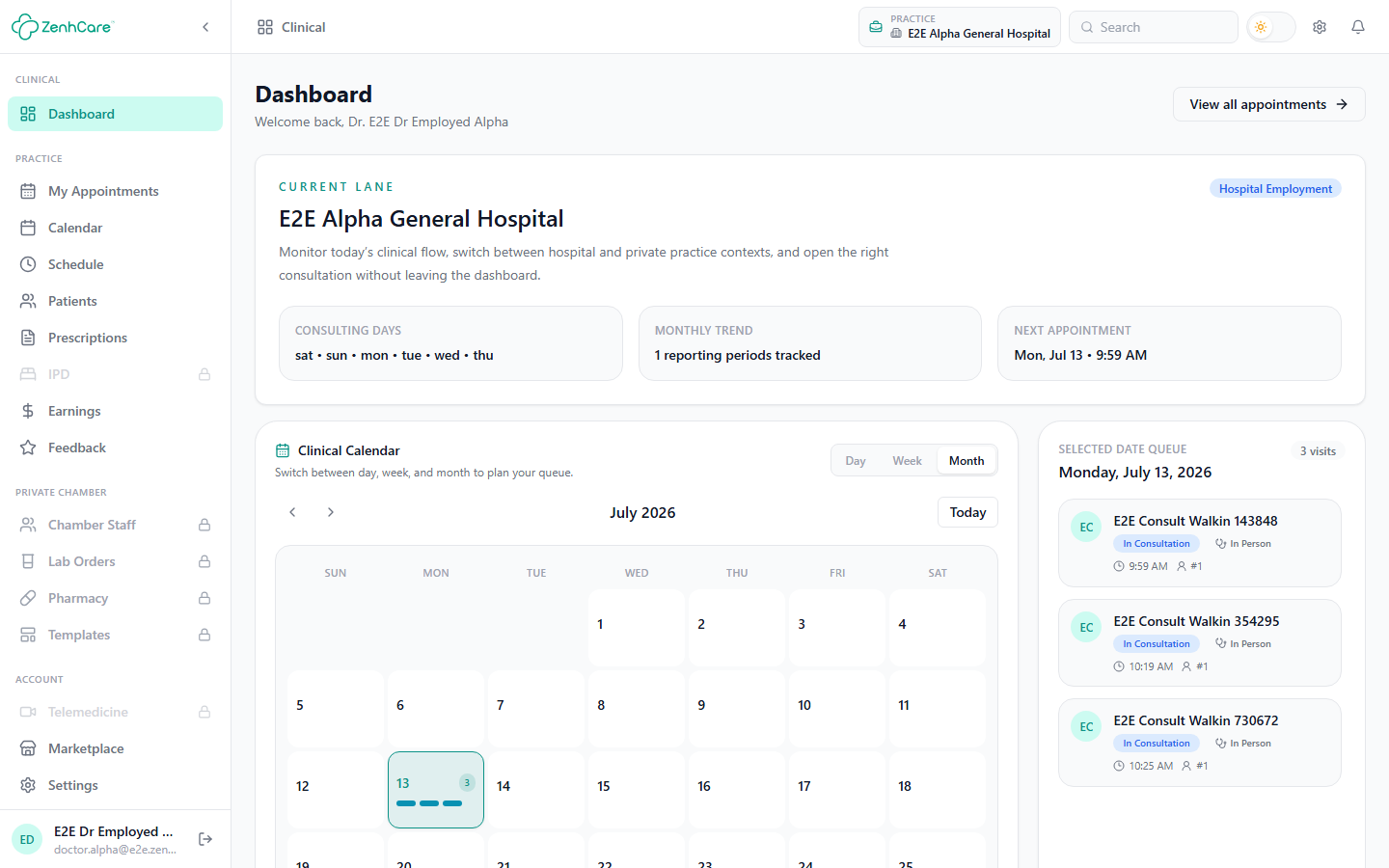
Your sidebar covers Practice (My Appointments, Calendar, Schedule, Patients, Prescriptions, and — in a hospital — IPD), Earnings and Feedback, an optional Private Chamber section, and Account (Telemedicine, Marketplace, Settings).
Keep your Schedule current
Your bookable slots come from Schedule. If it's empty for a day, the front desk and patients see no slots to book — so a doctor with no availability effectively disappears from booking. Set your weekday slots once and adjust with date exceptions.
If you work at more than one place (a hospital plus your own chamber), a practice switcher at the top right lets you move between contexts — your appointments, patients, and tools change to match the practice you're in.
Running a consultation — start to finish
The patients you're seeing today reach you through My Appointments — whether booked ahead or checked in to you at the front desk.
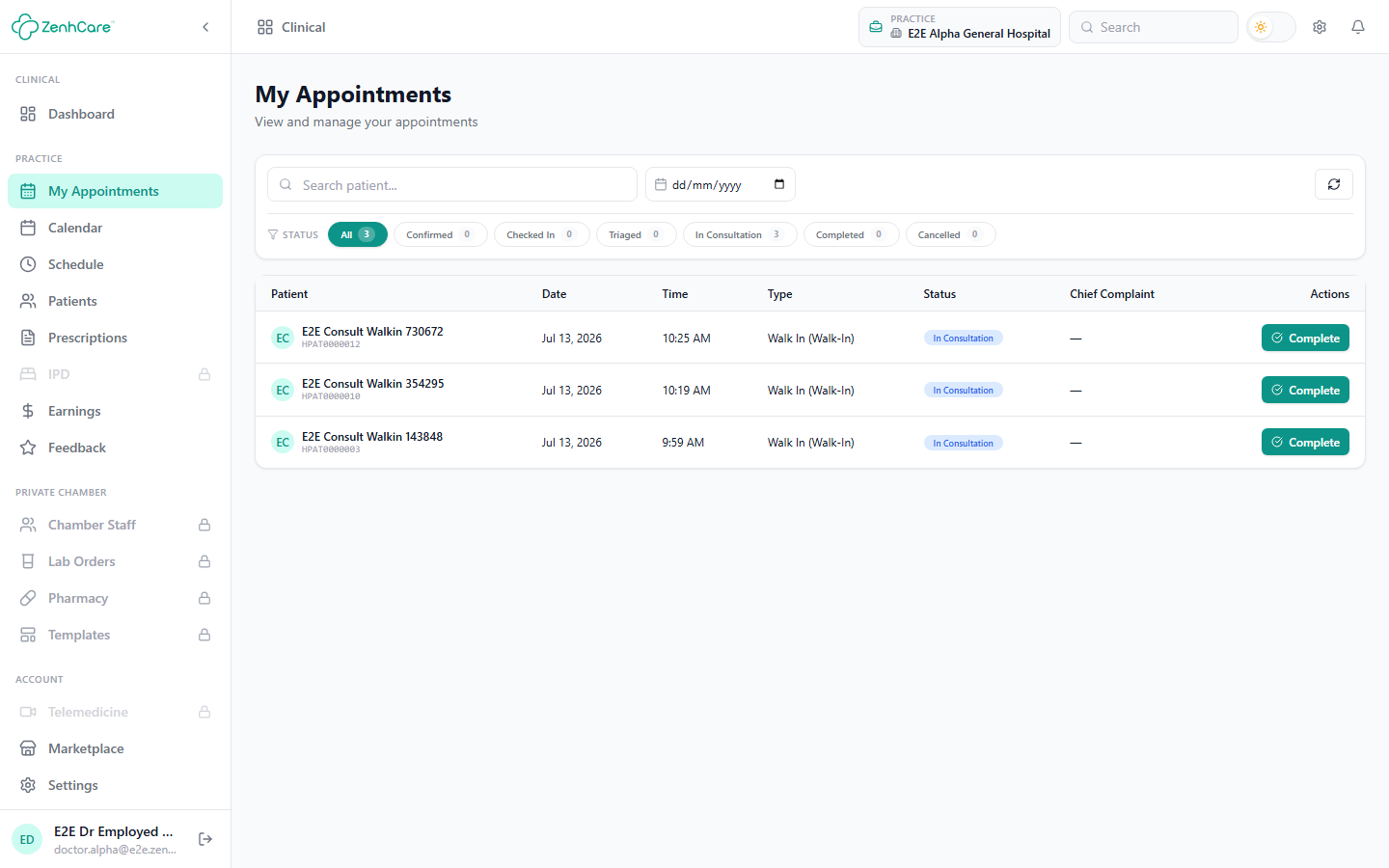
1. Start the consultation
Find the patient (search, or the status chips) and click Start. This marks the visit in consultation and opens the full-page prescription canvas for that patient.
The payment gate may stop you
If your hospital enforces the payment gate, you can't start a consultation whose consultation fee is unpaid — you'll be told payment must be cleared. Reception collects it (or you, if you hold the permission), then Start works. This is expected, not an error.
2. Work through the prescription canvas
The canvas is organised as a rail of sections down the right — you fill only the ones you need, and a tick shows which are done:
- Complaint — the chief complaint (type your own or pick from suggestions).
- History, Findings, Investigation — the clinical picture.
- Diagnosis — your assessment.
- Medication — the drugs, with dose, frequency, duration, and instructions.
- Advice, Follow-up, Referral — aftercare, the next visit, and onward referrals.
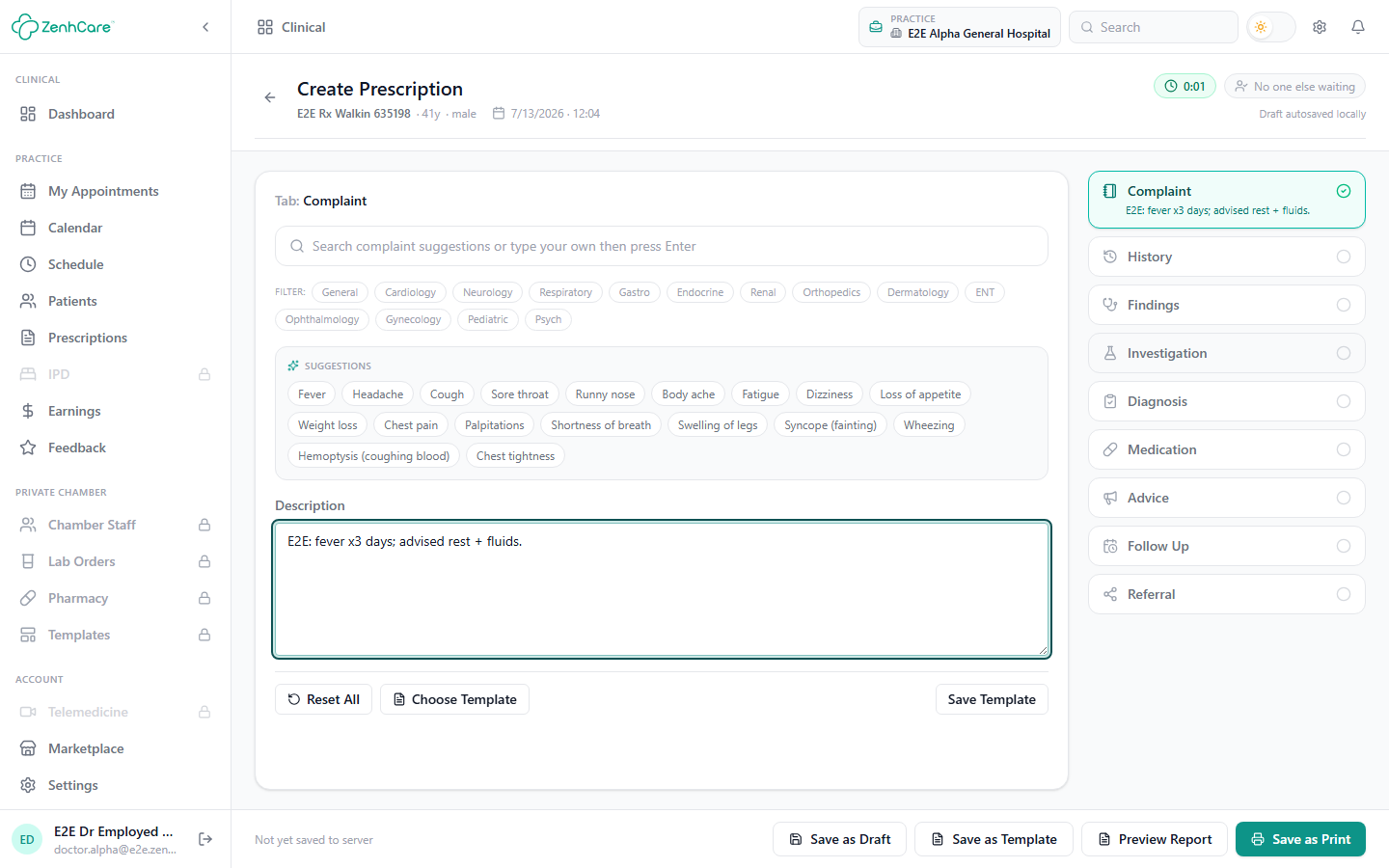
You can Choose Template to pre-fill a section from one of your saved templates, and you can order lab tests as part of the visit — they're created when you finalise.
3. Finish the visit
The action bar at the bottom offers four ways to end:
| Button | What it does |
|---|---|
| Save as Draft | Keeps your work-in-progress without finishing — you (or another device) can resume later. |
| Save as Template | Saves the filled sections as a reusable template for future patients. |
| Preview Report | Opens the printable prescription to check it first. |
| Save as Print | Finalises the prescription — this is the one that ends the visit. |
Save as Print finalises the prescription, auto-completes the appointment (it moves to Completed on the OPD board), fires any lab orders or dispensing you added, and opens the branded prescription PDF to print or share.
What finalising triggers
On finalise you'll see a confirmation like "Prescription finalized · appointment completed · 1 lab order(s) created" — so a single action closes the visit, files the prescription on the patient's record, and hands any orders to the lab or pharmacy.
Private practice (a doctor's own chamber)
Beyond working inside a hospital, a doctor can run their own private chamber — an independent practice with its own patients, schedule, and fees. A private doctor gets the full Practice toolset: appointments, calendar, schedule, patients, prescriptions, earnings, and feedback.
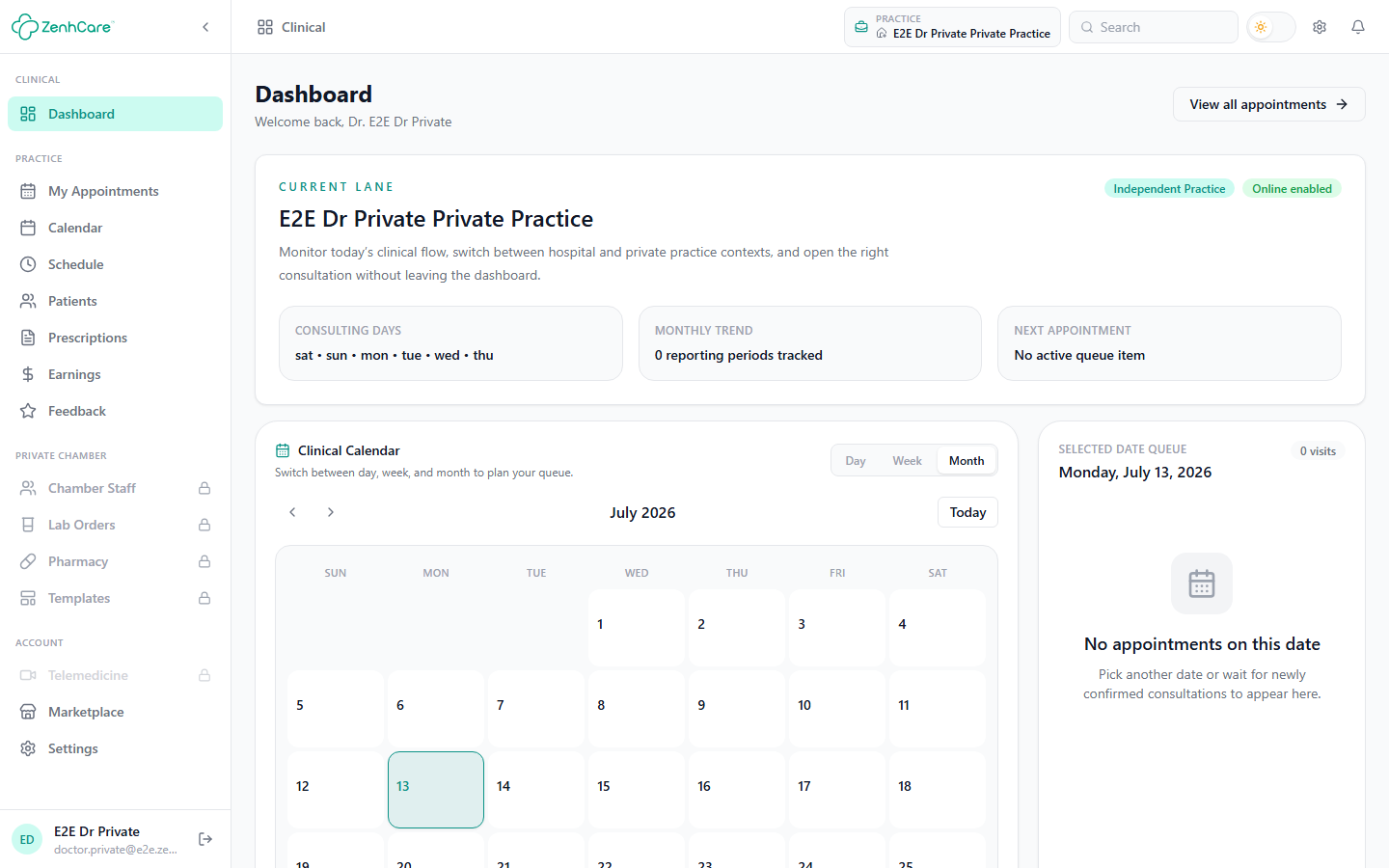
The Private Chamber tools
The chamber's operational tools — Chamber Staff, Lab Orders, Pharmacy, and Templates — are gated behind an active chamber subscription, and Telemedicine is a separate add-on. Until they're active they appear with a padlock, and opening one prompts to upgrade.
New private doctors get their chamber on creation
When a ZenhCare super-administrator creates a private doctor, the chamber subscription is activated automatically — Chamber Staff, Lab Orders, Pharmacy, and Templates are usable right away. Paid accounts go straight to active; demo accounts get a trial that runs to the demo's expiry. Telemedicine stays a separate add-on you enable from the Marketplace. If a chamber tool still shows a padlock, the account was set up before this became automatic (or its subscription has lapsed) — contact ZenhCare to activate it.
Telemedicine
Telemedicine lets you take online consultations. During a video visit you consult and prescribe on the same canvas as an in-person one, and a telemedicine center can book and bridge the call for you. Telemedicine is a separate add-on (from the Marketplace) — a private doctor enables it to take online visits.
Related
- OPD — the queue your hospital patients come from.
- Billing & the payment gate — collecting the consultation fee.
- Earnings & payouts — how fee-share income settles.